MASCOZ
If you want your virtual avatar to move like a real character, avatar tracking is essential.
MASCOZ supports a wide range of tracking options, including webcam-based and Android face tracking, iPhone Face Capture, and hand tracking using Leap Motion.
Thanks to this, even beginners can easily get started with real-time VTuber streaming, virtual streamer activities, and photo or video content creation without feeling overwhelmed.
What Is Avatar Tracking?
Avatar tracking is a technology that captures a user’s facial expressions and movements in real time using cameras or sensors, allowing the avatar to mirror them naturally.
•
Face Tracking
◦
Tracks facial features such as the face, eyes, mouth, and expressions in real time
◦
Essential for VTubers and virtual streamers
•
Hand Tracking
◦
Accurately reflects hand movements, gestures, and upper-body motion
◦
Based on Leap Motion technology, commonly used for 3D performances
Setting Up Face Tracking
Launch the MASCOZ PC app and select “Tracking” in the Studio. You can use an iPhone, a webcam, or an Android device as a webcam alternative for face tracking.
How to Set Up Face Tracking with an iPhone
1.
2.
Make sure your iPhone and PC are connected to the same Wi-Fi network.
3.
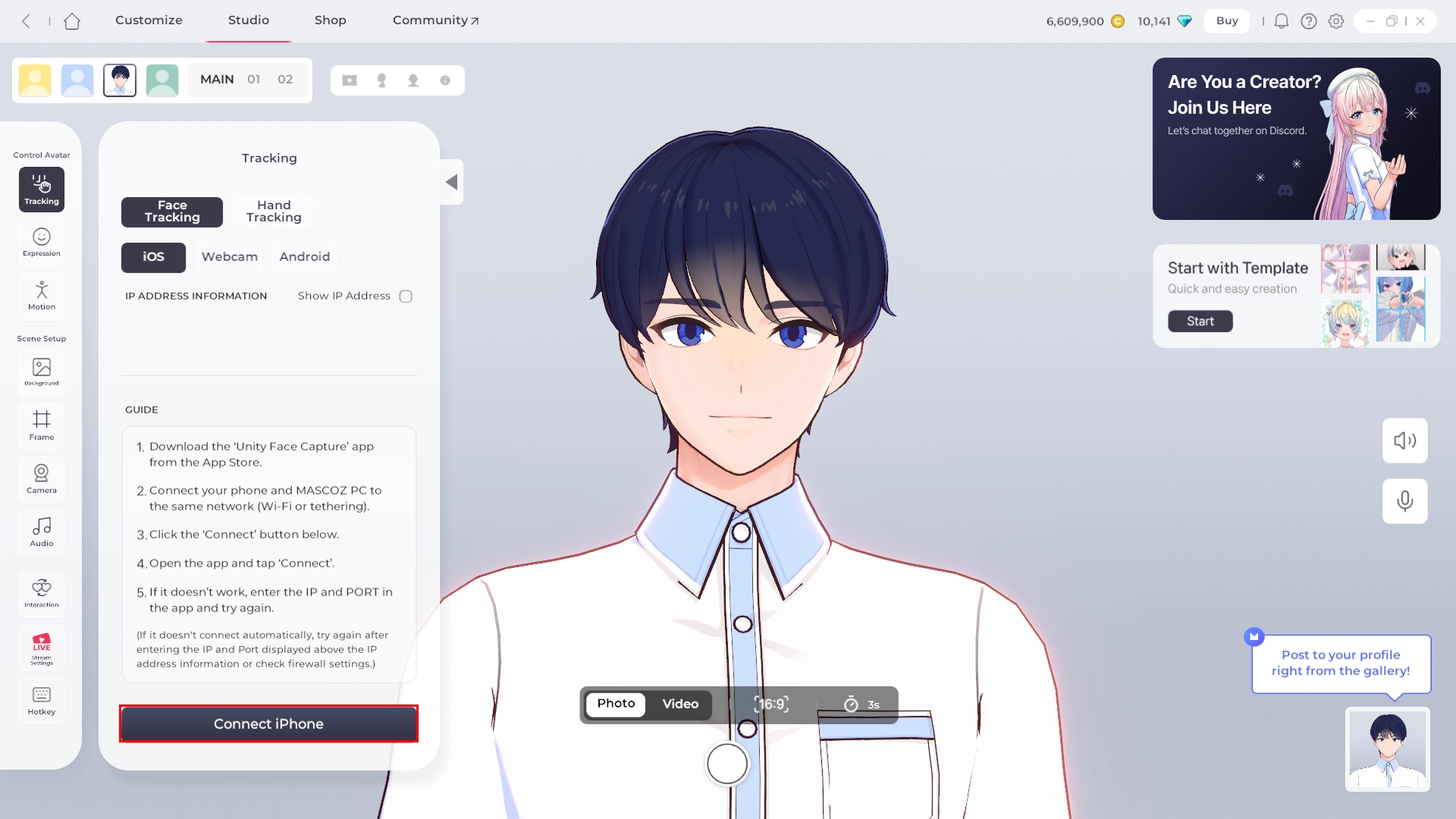
In MASCOZ Studio, go to Tracking → iPhone, then select “Connect iPhone.”
4.
Open the Unity Face Capture app on your phone again and tap “Connect.”
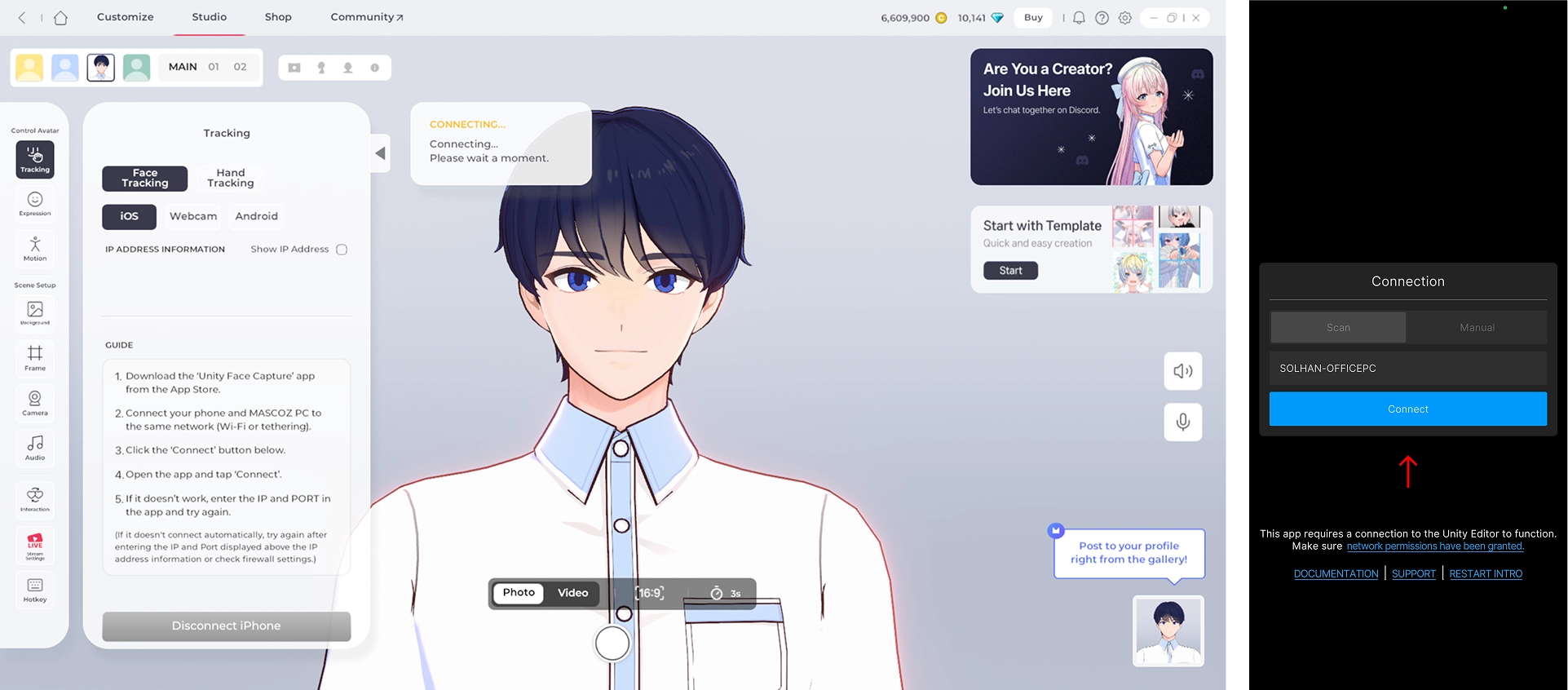
If the Unity Face Capture app can’t find your Wi-Fi automatically, enable “Show IP Address” in MASCOZ and manually enter the displayed IP address and port into the app.

5.
Face tracking is now connected.
How to Set Up Face Tracking with a Webcam
1.
Connect a webcam to your PC.
2.
In MASCOZ Studio, go to Tracking → Face Tracking → Webcam, then select the webcam you want to use.
3.
Face tracking is now connected.

TIP: How to Improve Tracking Accuracy
•
Make sure there’s enough lighting so your face is clearly visible.
•
Position the webcam slightly above and directly in front of your face.
How to Use an Android Phone as a Webcam for Tracking
1.
2.
3.
Connect your phone and PC to the same Wi-Fi network.
4.
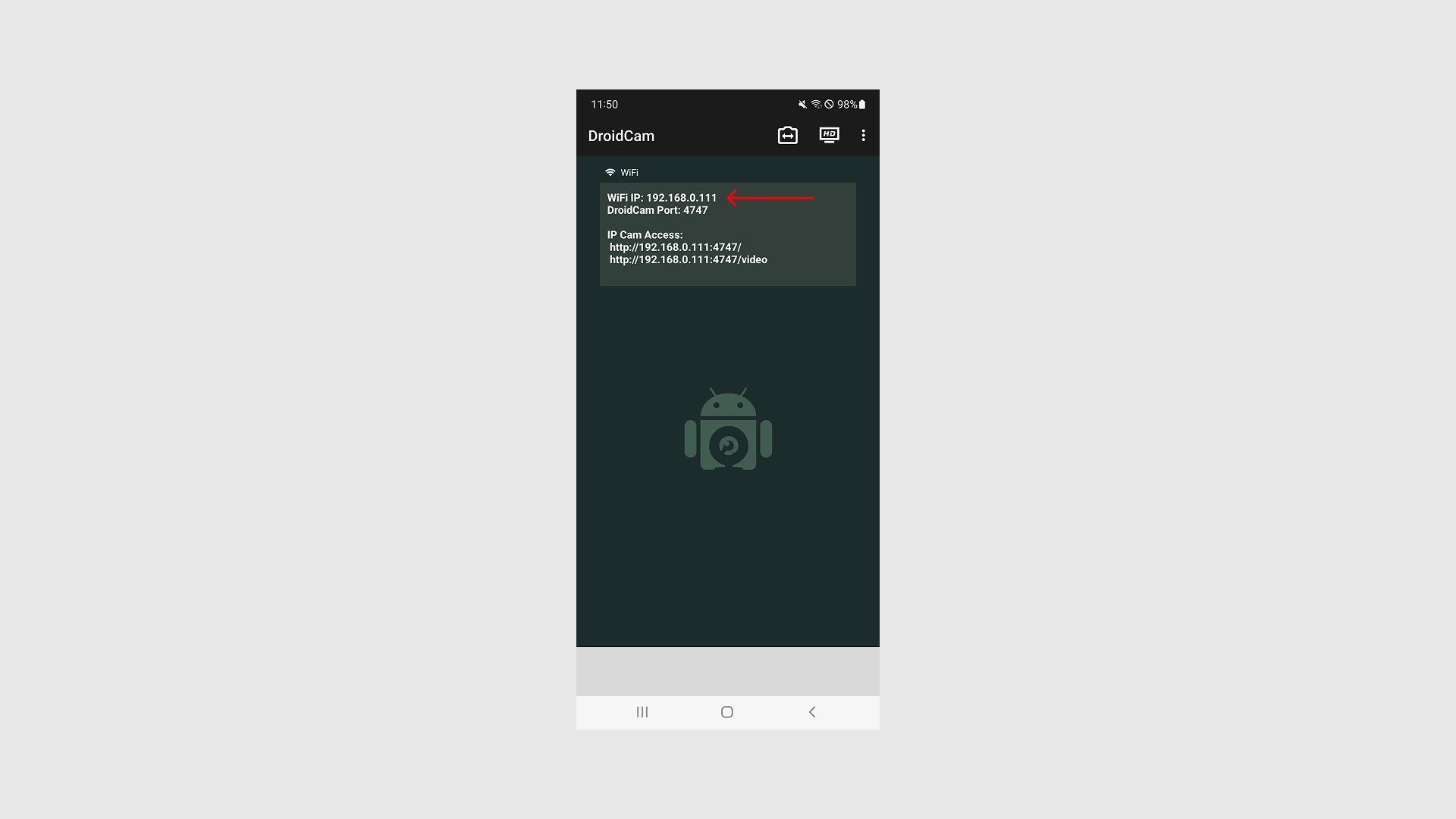
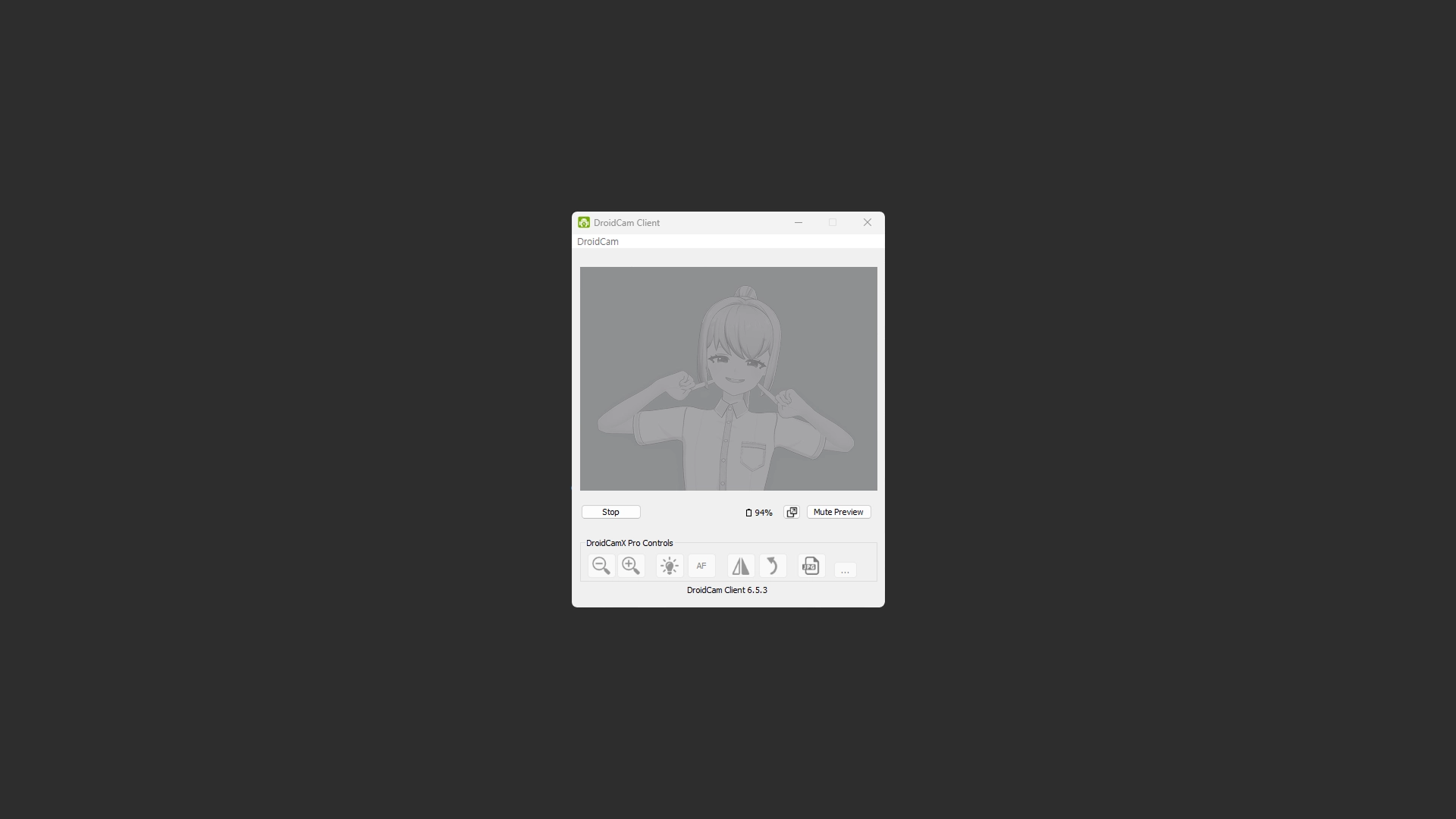
Open the DroidCam app on your phone.
5.
Launch DroidCam on your PC. Enter the Wi-Fi IP address shown in the mobile app into the PC’s “Device IP” field, then click “Start.”

6.
Face tracking is now connected.
Setting Up Hand Tracking
Once face tracking is connected, you can also enable hand tracking.
Be sure to set up face tracking first, then connect hand tracking. MASCOZ supports tracking via LeapMotion and Webcam.
How to Set Up Hand Tracking with Leap Motion
1.
2.
Connect the Leap Motion device to your PC.
3.
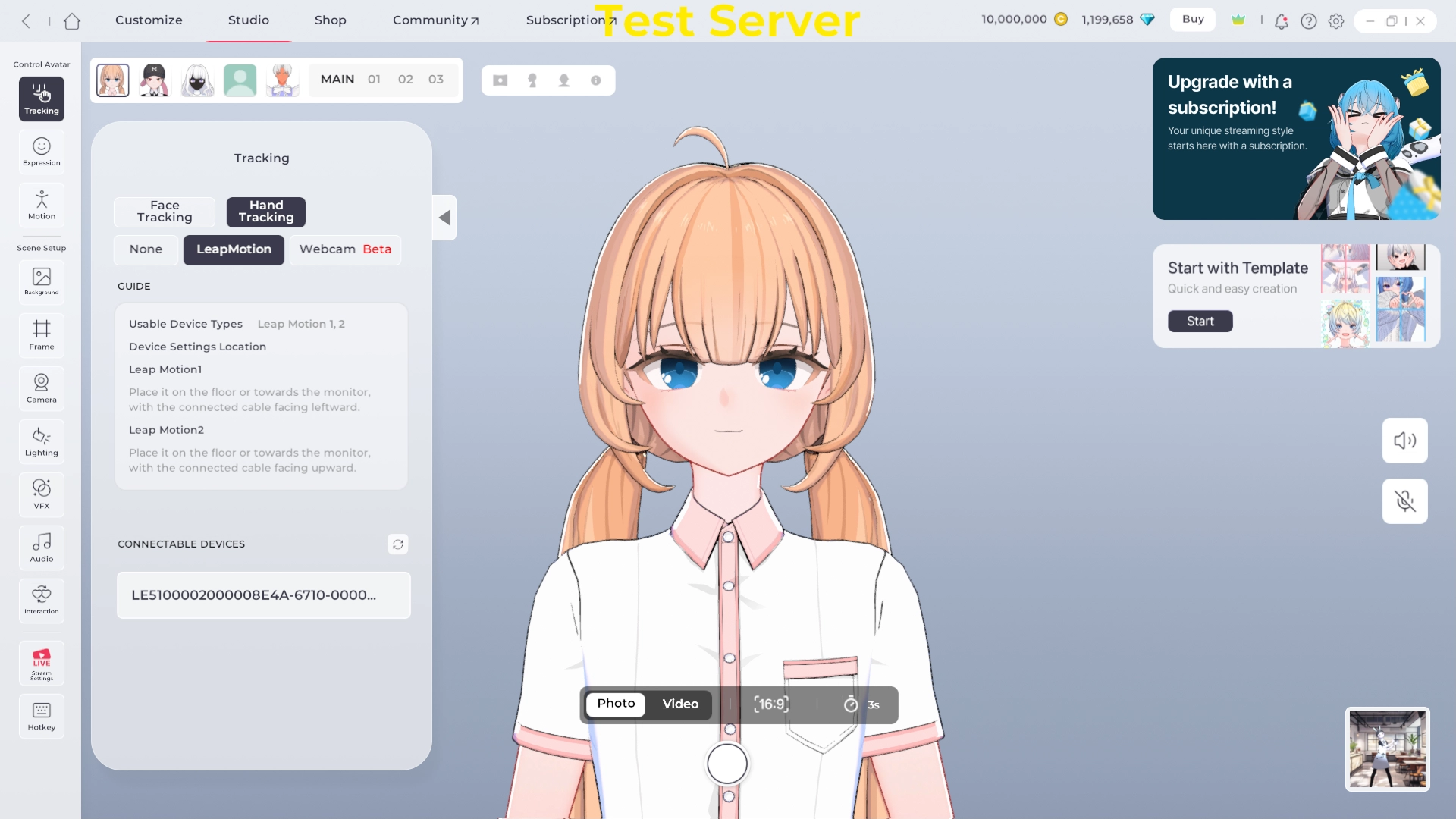
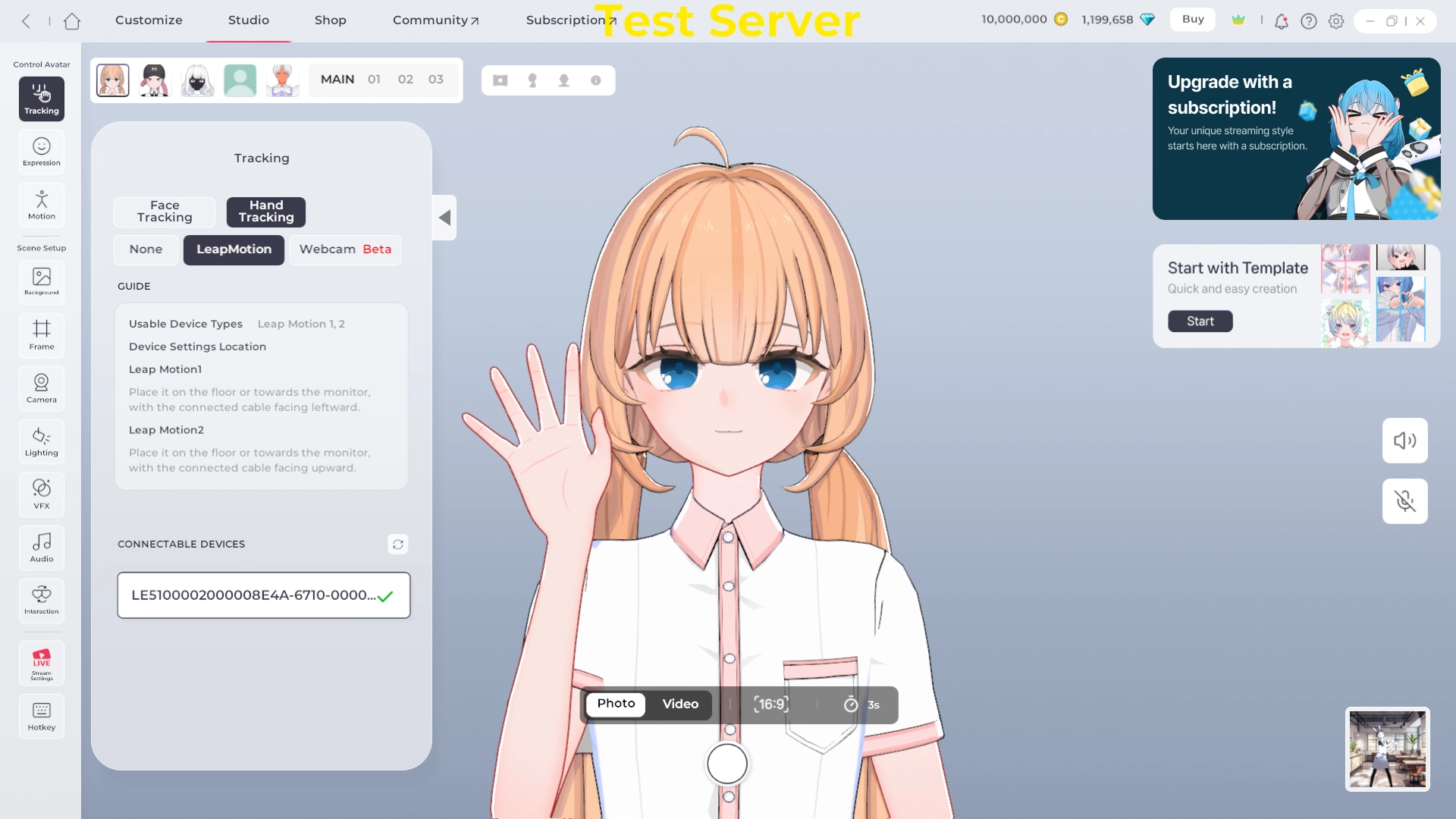
In MASCOZ Studio, go to Tracking → Hand Tracking and select the Leap Motion device you want to use.
4.
Hand tracking is now connected.
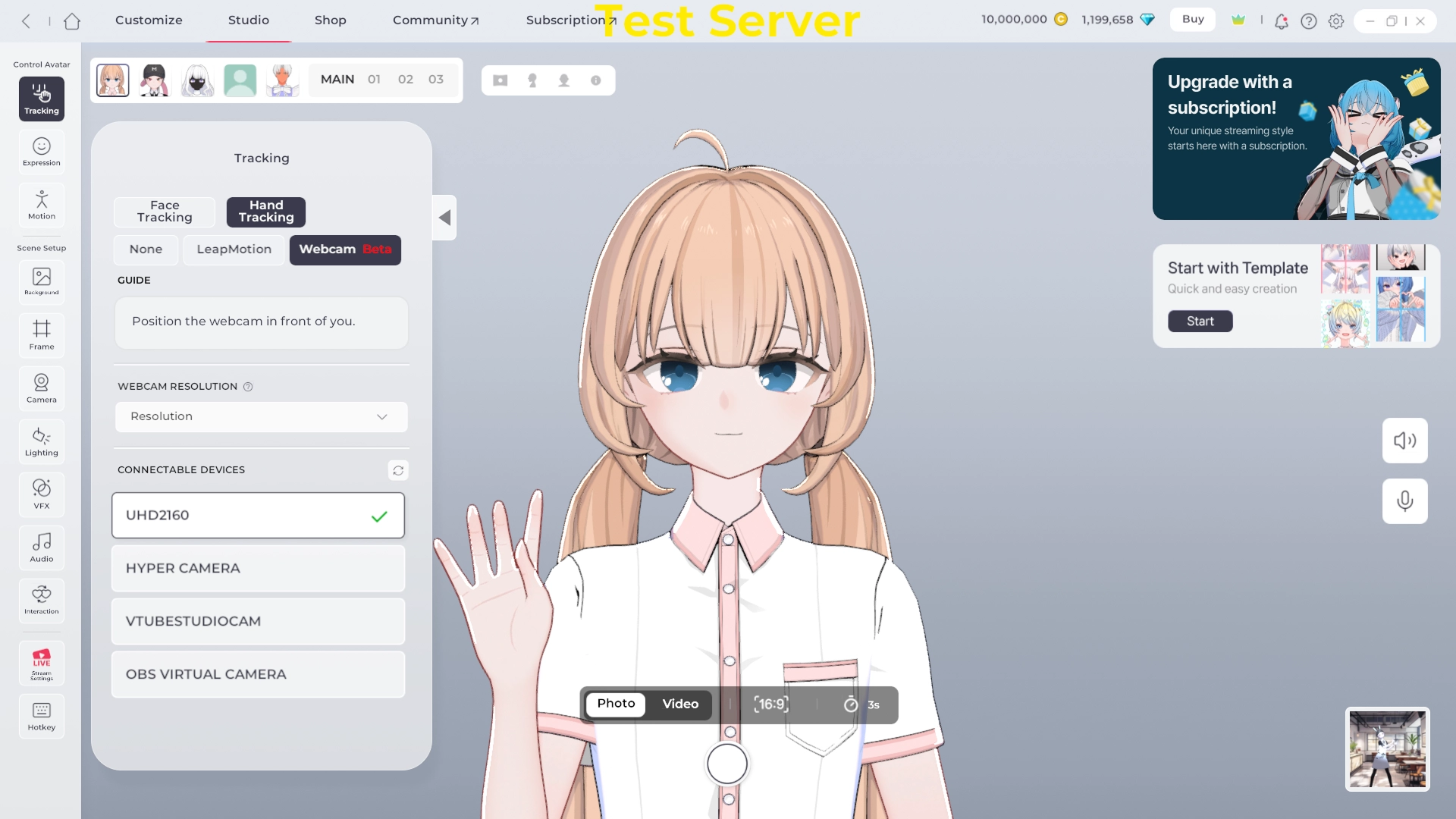
How to Use Hand Tracking with a Webcam
1.
Connect a webcam for hand tracking to your PC.
Face tracking and hand tracking each require a separate webcam — they can't share the same one.
Face tracking and hand tracking each require a separate webcam — they can't share the same one.2.
In Mascoz's Studio > Tracking > Hand Tracking, select the webcam you want to connect.
3.
Your hand tracking is now connected!
TIP: How to improve tracking accuracy
•
Positioning the webcam at the streamer's chest level makes your avatar's hand movements look more natural.
•
Tracking precision may vary depending on your environment (lighting, background, etc.).