
This guide explains how to use an Android phone as a webcam for PC-based tracking when no physical webcam is available.

•
This guide introduces a method using third-party software.
•
Any bugs or issues caused by third-party software are not the responsibility of the company. Please use at your own discretion.
•
MASCOZ supports only the DroidCam (Classic) version.
•
The newer DroidCam Client and DroidCam Webcam & OBS Camera are not supported.
•
This is one possible method. Other webcam solutions may also be used.
Software & App Installation
Device | Installation |
PC | • Install DroidCam Client (Classic) by Dev47Apps
If the newer DroidCam Client is already installed, uninstall it first, then install the supported version. |
Android Phone | • Open Google Play Store
• Install DroidCam Webcam (Classic) |

PC DroidCam(Classcic) Installation
Connection Setup
1. Connect Android Phone to Wi-Fi
Connect the Android phone to the same network as the Windows PC.
2. Connect Windows PC to the Same Network
The PC must be connected to the same local network (wired or wireless).
3. Launch DroidCam on Android
Open the DroidCam app on your Android phone.
Check the WiFi IP address and DroidCam Port displayed on the screen.
4. Connect DroidCam Client on PC
Open DroidCam Client on the PC.
Enter:
- Device IP (shown on the Android phone)
- DroidCam Port

DroidCam WIPI IP
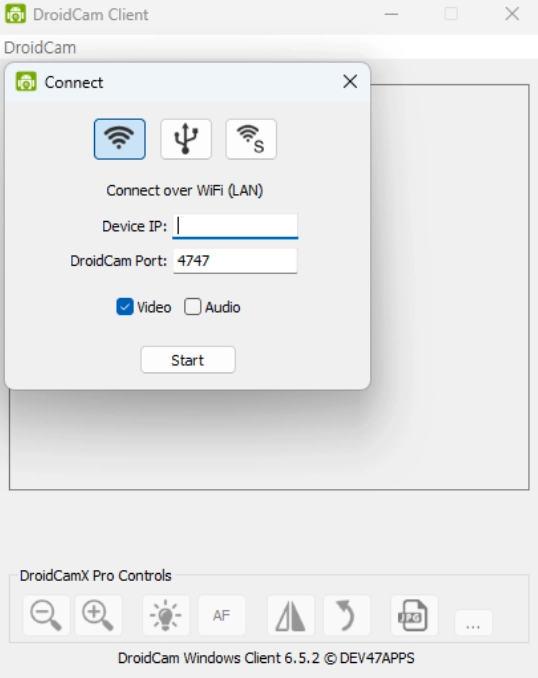
PC DroidCam WIPI IP
5. Mute PC Camera Preview
In the DroidCam Client window, click Mute Preview
This prevents the user’s real face from being shown on screen.

PC DroidCam Mute Preview
Return to MASCOZ
If you load the DroidCam source in MASCOZ by following the path below, face tracking using an Android phone and DroidCam will work properly.
MASCOZ Launch > Studio > Tracking > Face Tracking > Android > Select DROIDCAM SOURCE
